Eye Buffer Resolution
For XR applications, the rendering resolution of the Projection Layer (often referred to as Eye Buffer resolution) is influenced by the system's recommended value. The system recommends a resolution to the application, and the application can choose to scale it. For example, if an application's rendering scale is 1.5x, and the system's recommended Eye Buffer resolution is 1000x1000, the application's final rendered Eye Buffer resolution will be 1500x1500.
For YVR2 and Play For Dream MR devices, there is a significant difference in the recommended resolutions provided by the system:
| Device Type | Recommended Eye Buffer Resolution |
|---|---|
| YVR2 | 1600x1600 |
| Play For Dream MR | 2880x2664 |
Note
Compared to other XR platforms, the recommended resolution for Play For Dream MR devices is higher. Other XR platforms typically have a recommended resolution of around 2K, while Play For Dream MR devices have a recommended resolution close to 3K. The main reasons for recommending a higher Eye Buffer resolution on Play For Dream MR are:
- A higher Eye Buffer resolution helps showcase the outstanding screen of the Play For Dream MR device.
- Testing has shown that the vast majority of existing applications can meet the Eye Buffer resolution requirements of Play For Dream MR devices.
If your application experiences low frame rates due to GPU Bound issues on YVR2 or Play For Dream MR devices, you can try adjusting the Eye Buffer resolution to resolve the problem.
Tip
In the system logs, we print the current application's submitted frame rate at one-second intervals, as shown below:
PerfStats.cpp: FPS=90.00/90, Prd=23.91ms, Early=90.00, Stale=0.00, Lat=-1, Fov=0, CPU/GPU=4/5, Free=8112MB, ATW=3.04ms, APP=1.75ms/2.28ms, GD=0.00, CPU%=0.46, GPU%=0.31
You can use the GPU% field to determine if the application has a GPU Bound problem. If this value is close to 100% and the FPS drops significantly, it indicates a GPU Bound issue.
If your application uses the URP rendering pipeline, you can query and set the Eye Buffer resolution at runtime using the (GraphicsSettings.renderPipelineAsset as UniversalRenderPipelineAsset).renderScale interface.
For URP projects, you can also modify the Eye Buffer rendering resolution by directly modifying the Pipeline Asset before compilation:
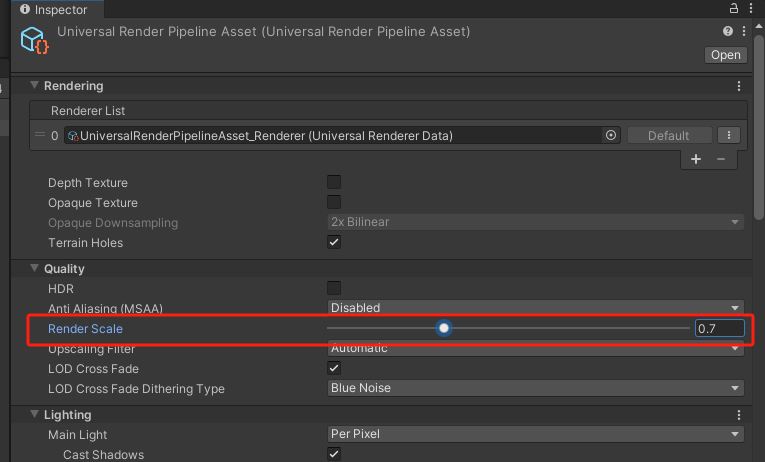
If your application uses Unity's built-in rendering pipeline, you can query and set the Eye Buffer resolution at runtime using the XRSettings.eyeTextureResolutionScale interface.
Note
Setting the Eye Buffer resolution means that related textures need to be reallocated, which incurs a certain performance cost. Therefore, it is not recommended to modify the Eye Buffer resolution too frequently.
Quad Views Rendering Mode Modification
If using a Play For Dream MR device, you can use foveated rendering to achieve higher performance and visual quality. For an application using Quad Views rendering, its Eye Buffer is divided into two parts: Inner and Outer. Both parts have the same resolution, but the Inner part renders a smaller FOV angle, resulting in a higher PPD (Pixels Per Degree) and thus greater clarity.
The Inner and Outer resolutions also support runtime adjustment. An example of adjustment is as follows:
using System.Runtime.InteropServices;
using UnityEngine;

namespace YVR.SpatialHome.Configuration
{
    public class QuadRenderScaleConfiguration : MonoBehaviour
    {
        [DllImport("yvrplugin")]
        private static extern void YVRDestroyUnityTexture();

        [DllImport("yvrplugin")]
        private static extern void YVRSetInnerRenderScale(float scale);

        [DllImport("yvrplugin")]
        private static extern void YVRSetOuterRenderScale(float scale);

        public void Update()
        {
            YVRSetInnerRenderScale(1.2f);
            YVRSetOuterRenderScale(1.4f);
            YVRDestroyUnityTexture(); // Make Unity recreate the eye buffer
        }
    }
}